DESKTOP FIELD GUIDE FIELD LOG / 001
Ledger Live Desktop: From First Start to Secure Workflow
A calm, practical route through setup, device checks, account views, and the habits that help keep your recovery information private. Move one mission at a time; pause whenever a detail does not look right.
BEGIN THE JOURNEYIndependent educational guide. Not affiliated with Ledger.
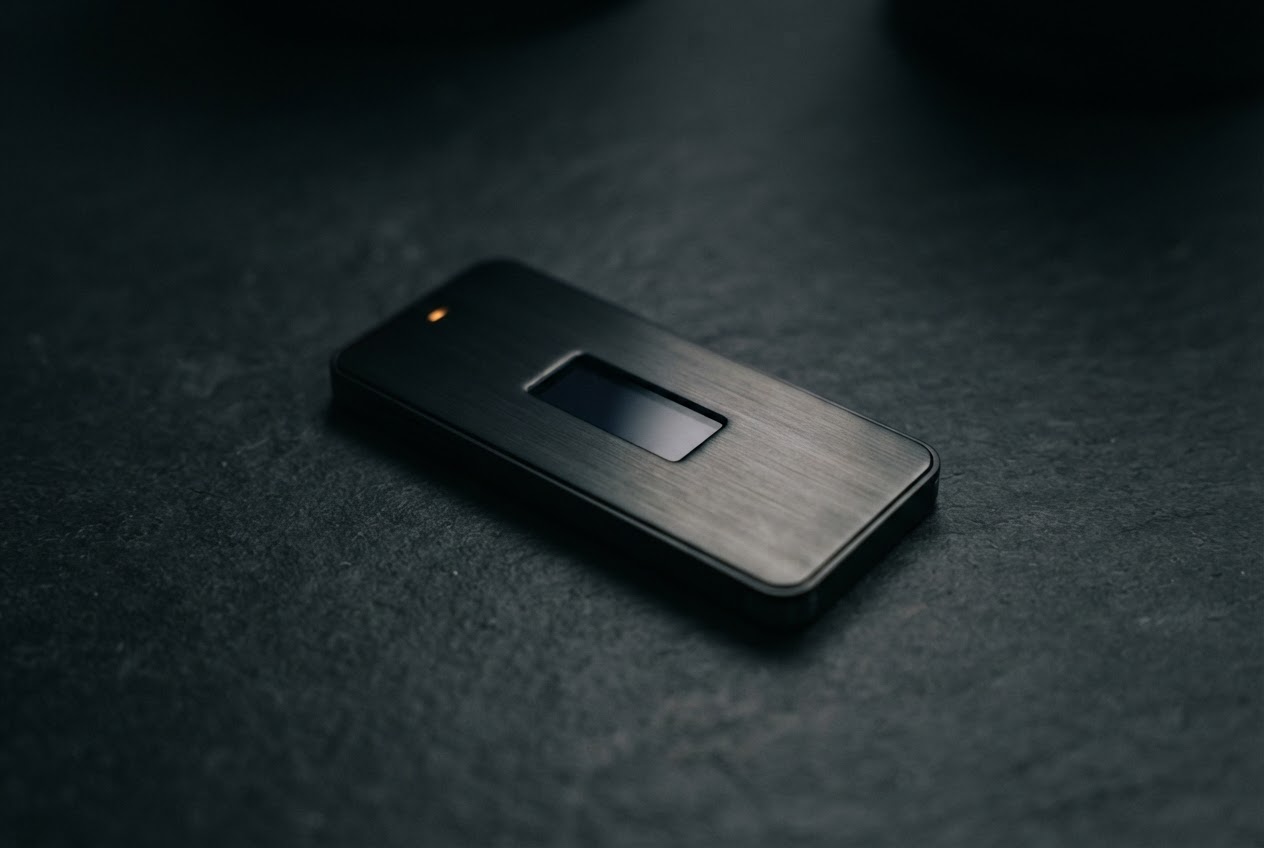 DEVICE / 01
 ROUTE OVERVIEW
Six checkpoints.
One deliberate workflow.
Use the field index to jump to the corresponding part of the guide. The full log continues through recovery, maintenance, and a final review.
Preparing Your Workspace
Choose a private, dependable computer and a place where you can focus. Install Ledger Live Desktop only from a source you independently verify as Ledger’s genuine distribution channel; avoid sponsored lookalikes, unsolicited messages, and links in direct messages. Check the publisher and any available integrity guidance before opening an installer. Keep your operating system current, use a screen lock, and close unrelated applications while setting up. A few minutes spent confirming the environment reduces avoidable confusion later.
Starting Ledger Live Desktop
Open the installed application and take time to read each setup screen. Depending on the version and your needs, you may be offered a choice to initialize a new hardware device, restore an existing setup, or continue without connecting immediately. Follow current on-screen instructions rather than relying on an old walkthrough, since menus can change. You can explore general settings first and connect a device when ready. Never enter a recovery phrase into a desktop app, website, or support chat to complete setup.
Connecting and Checking Your Device
Connect your hardware wallet with a trusted cable, unlock it using its own controls, and follow the app’s pairing prompts. Read the device screen itself: it is the place to review and approve sensitive actions. If a genuine-device or connection check is offered, let it finish and investigate any warning through independently reached support resources. A desktop display can be imitated; a prompt you did not initiate deserves a pause. Disconnect and reassess if names, addresses, or requested actions differ from what you expected.
Exploring the Desktop Interface
Get oriented before making changes. Common areas include a portfolio overview, account list, transaction activity, asset-management tools, and settings; names and available features can vary by release and region. Look for the selected account and network before interpreting any screen. Treat charts as convenience views, not guarantees or recommendations. If a feature is unfamiliar, read its explanation and confirm that it is supported for your device and asset. You do not need to connect every service or enable every feature to use the basics.
Understanding Accounts and Portfolio Information
Accounts organize activity for particular assets or networks, while the portfolio view may combine supported balances into an estimated total. Displayed prices, conversions, and transaction history depend on data availability and can be delayed, incomplete, or different from another service. A balance shown in software is not itself proof that a transaction is final. Check the relevant network, address, and confirmations using appropriate independent references when a transfer matters. Keep records that help your own accounting, but avoid sharing screenshots that expose addresses or personal patterns.
Security Habits
Use a unique computer password, keep device firmware and desktop software current through verified in-app or independently confirmed instructions, and secure the room when handling your device. Confirm transaction details on the hardware wallet display, including destination and amount, before approving. Do not approve an unexpected connection, signature, or transfer simply because a desktop window asks. Be skeptical of urgency, giveaways, remote-access requests, and anyone promising to recover funds for a fee. For high-impact actions, stop and verify using a separate trusted channel.
Recovery Information
A recovery phrase is a powerful backup, not a password-reset code. During an authorized device setup, write it down exactly as instructed and store it offline in a private, physically protected place. Keep it away from cameras, cloud storage, shared documents, and people who do not need access. Do not test a phrase by entering it into a computer or a website. Learn the maker’s current recovery guidance before you need it, and consider how trusted heirs could locate instructions without exposing the phrase prematurely.
Updates and Maintenance
Updates can improve compatibility and security, but they still require attention. Read release information, confirm the update prompt comes from the installed app or a channel you independently trust, and make sure your recovery backup is safely available before device maintenance. Use stable power and do not disconnect hardware while an update is in progress. Afterward, check that the app recognizes the device and that expected accounts remain visible. If anything unexpected happens, stop rather than installing a file offered by an unsolicited helper.
Beginner Mistakes
Frequent missteps include choosing a download from an advertisement, confusing an estimated fiat value with a guaranteed sale price, sending an asset on an incompatible network, and rushing through an address check. Some networks require a small amount of their native asset for fees; review network-specific requirements before acting. Do not rely on a familiar logo or polished design as proof of legitimacy. Make a small test transfer only when appropriate, understand any fees and risks first, and verify the destination on the device before approval.
Final Mission Checklist
Before finishing, confirm that you installed the desktop app from a verified source, can recognize your connected device, and know where to review account and activity details. Your recovery information should be offline and private. You should understand how to verify addresses and transaction details on the device, where to check current maintenance guidance, and how to pause when something feels wrong. Keep this workflow simple: confirm the source, inspect the details, approve deliberately, and protect the backup. Digital-asset tools carry risk; this guide is educational, not financial advice.
RETURN TO MISSION INDEX